

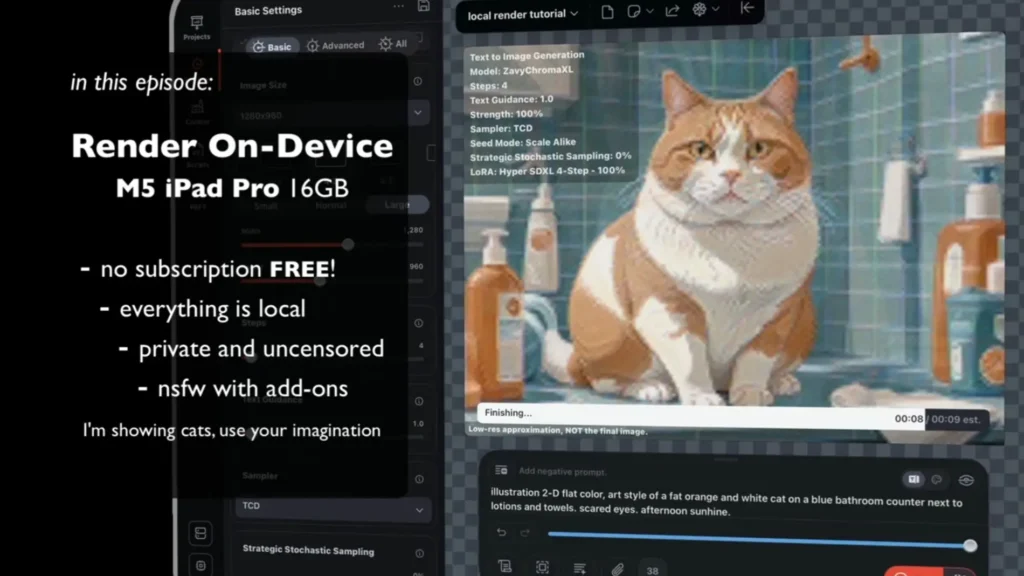
Draw Things AI stands out as a completely free, offline AI art generator built exclusively for Apple devices. The app runs Stable Diffusion models directly on iPhone, iPad, or Mac hardware, delivering high-quality images without any internet connection after the initial model download.
Everything stays private on the device, no data leaves for cloud servers, no usage tracking, and no subscription fees for core features. Users generate text-to-image, image-to-image, and even video clips using the latest models like SDXL, FLUX.1, Wan 2.2, and newer additions such as LTX-2.3 and Z Image.
This setup solves a common frustration for Apple users who want professional-level AI art without ongoing costs or privacy risks. The app supports full customization through community models and on-device training, making it accessible for hobbyists and serious creators alike.

Right now, most creators look for tools that deliver speed and control without monthly bills or data uploads. Draw Things meets that need head-on by leveraging Apple Silicon’s Neural Engine for efficient local processing.
Why It Beats Midjourney for Apple Users
Midjourney requires a constant Discord connection and paid subscriptions starting at around $10 per month for basic access. Every generation depends on cloud servers, which means no work during outages and potential data exposure.
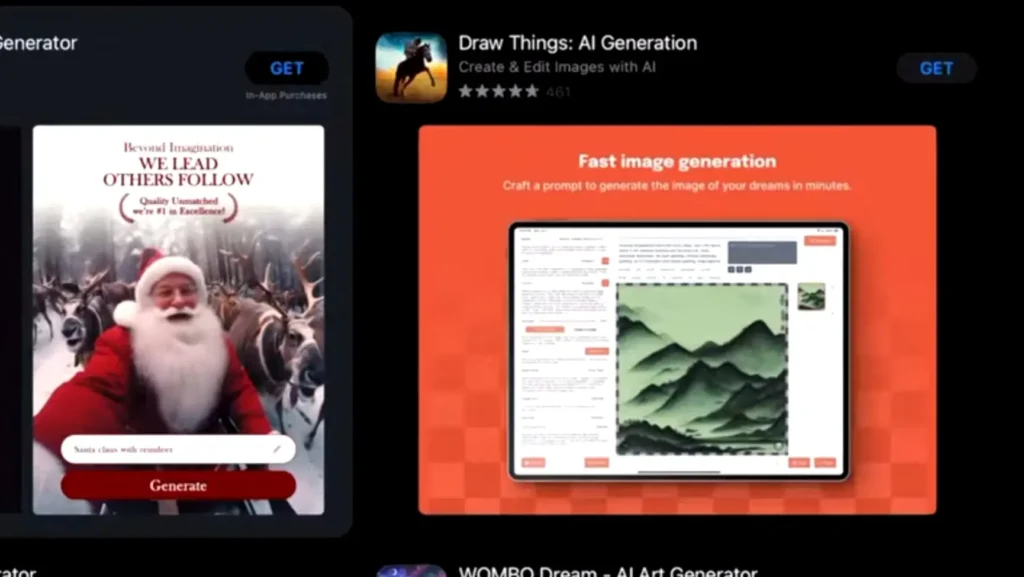
Draw Things flips this model completely. Users pay nothing beyond the free download, generate unlimited images once models load, and keep every prompt and output strictly on-device. No internet equals true portability—create on a flight or in remote areas without signal.
Apple Silicon optimization gives another clear edge. M1, M2, or M3 chips handle diffusion models faster than many expect, often completing a 512×512 image in under 30 seconds on mid-range devices. Midjourney’s cloud queues can slow down during peak hours, while Draw Things runs instantly.
Privacy stands out even more: sensitive concepts or client work never leave the device, a major plus for professional artists handling NDAs. The absence of watermarks and full commercial rights on all outputs makes it ready for real projects right away.
Technical Requirements: Is Your Device Ready?
Compatibility starts with modern Apple hardware. The app works on iPhone, iPad, and Mac running iOS 15.4, iPadOS 15.4, or macOS 12.4 and later. Apple Silicon chips (M1 and newer) deliver the best performance; Intel Macs receive limited support but run slower.

Minimum RAM matters for smooth operation. Basic image generation with models like FLUX.1 or SD 1.5 needs at least 8GB unified memory. For SDXL, FLUX variants, or video models such as Wan 2.2, 16GB proves more reliable to avoid crashes or slowdowns. Devices with 6GB or less, like older iPhones, struggle with larger models but still function using lighter checkpoints.
A standout feature called Server Offload helps older or low-RAM devices. Users connect an iPhone or iPad to a more powerful Mac on the same network. The mobile device handles the prompt and interface, while the Mac processes the heavy diffusion steps and streams results back.
Setup takes seconds in the app settings under Cloud Compute options. This hybrid approach lets an iPhone 12 user tap into an M3 MacBook’s power without buying new hardware. Battery drain drops on the phone, and generation speed jumps dramatically.
Disk space also plays a role. Each model checkpoint ranges from 2GB to 7GB, and LoRAs add hundreds of megabytes. Keeping 20-30GB free ensures room for multiple models plus generated images. The app includes built-in memory management tweaks, users can purge unused models or lower precision to 8-bit for extra headroom on tighter devices.
Deep-Dive: Understanding the Interface
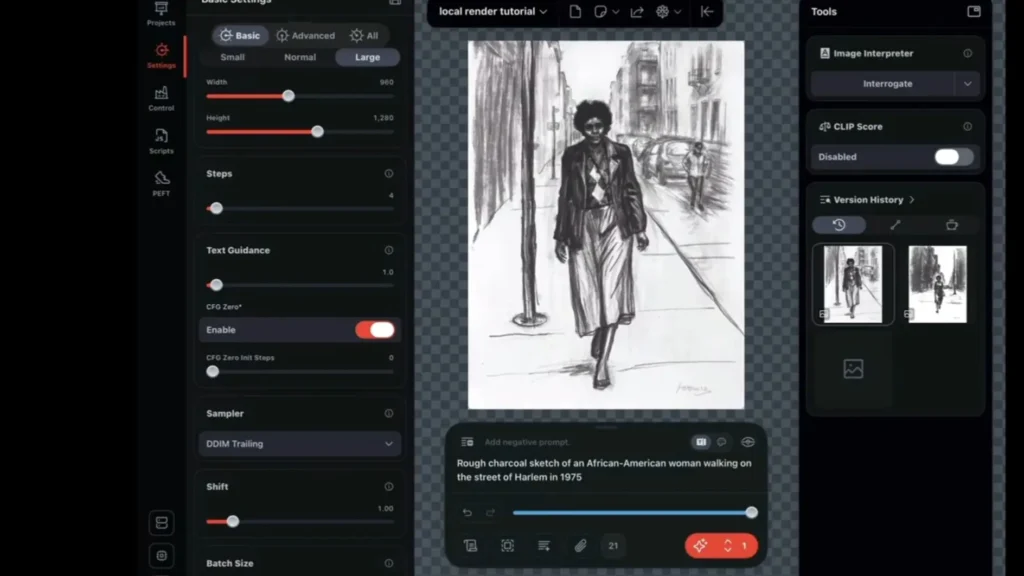
The clean interface puts creative control front and center. The main canvas displays the current image or project, with a prominent text prompt box at the bottom. Users type descriptions, add weights like (keyword:1.3) for emphasis, and negative prompts to exclude unwanted elements.
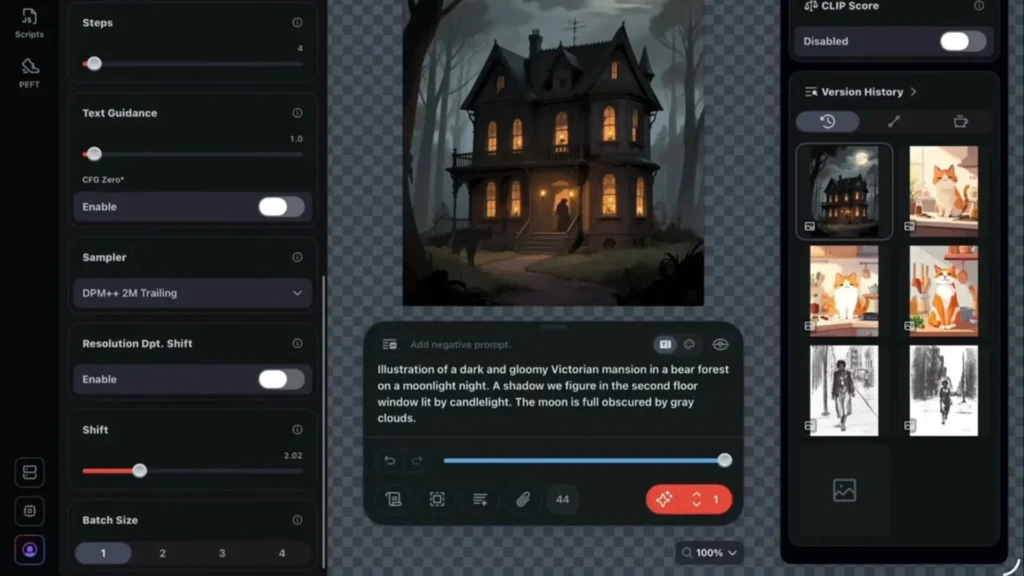
Text-to-image generation begins with a strong prompt. Effective examples include detailed descriptions such as “a cyberpunk samurai standing on a neon rooftop at night, rain reflections, cinematic lighting, highly detailed, 8k”. The app supports natural language and advanced syntax from the Stable Diffusion community.
Sampling methods appear in the settings panel. Popular choices include Euler a for balanced speed and quality, DPM++ 2M Karras for sharper details, and UniPC for faster previews. Most users start with 20-40 steps for everyday work and push to 50-80 for final renders.
Key settings control output quality:
- Steps: Higher values refine details but increase time. Beginners often settle at 25-35.
- Guidance Scale (CFG): Values between 7 and 12 keep the image faithful to the prompt without over-saturating colors. Lower numbers allow more creative freedom.
- Seed: A fixed number locks in the same starting noise for reproducible results. Random seeds generate variations with one tap.
Additional sliders adjust resolution (512×512 up to 1024×1024 or higher on capable hardware), denoising strength for image-to-image, and batch count for multiple outputs at once. The infinite canvas lets users zoom, layer, and iterate without losing previous versions, perfect for refining concepts step by step.
Pros and Cons
Pros:
- Completely free with no in-app purchases for core generation
- Fully offline and private processing on Apple devices
- Fast performance on Apple Silicon chips
- Direct Civitai integration for thousands of models
- On-device LoRA training and ControlNet support
- Infinite canvas for iterative editing
- Server Offload for older hardware
Cons:
- Steep learning curve for advanced settings and prompting
- High battery and storage usage on mobile devices
- Occasional crashes on low-RAM setups with complex models
- Limited to Apple ecosystem only
- Video generation still emerging compared to dedicated tools
- Manual model management required for large libraries
The CivitAI Integration
Community models from Civitai expand possibilities dramatically. The app includes direct integration for effortless imports. On the Civitai website, clicking the green play button next to any model or LoRA triggers an automatic download and import into Draw Things, no manual file handling required on supported devices.
For manual imports, users download Safetensors files from Civitai and place them in the app’s Models folder via Files app on iOS or Finder on Mac. The interface automatically detects new files on refresh. Custom VAEs improve color accuracy and detail; users select them from the VAE dropdown after import. Text encoders follow the same process and pair with specific models for better prompt adherence.
Configuration happens in the model settings panel. Users assign LoRAs to specific triggers, set strength (0.6-1.0 typical), and combine multiple LoRAs for blended styles. Embeddings and ControlNet models load the same way, unlocking pose guidance, depth maps, and edge detection. This ecosystem turns the app into a full local studio matching desktop power.
Advanced Workflows: Inpainting and LoRA
Inpainting removes or replaces elements with precision. Users load an image to the canvas, switch to the mask tool, and paint over unwanted areas like extra limbs or background clutter.
A new prompt describes the replacement “wooden table instead of chair” and the app regenerates only the masked region while blending seamlessly. Denoising strength around 0.7-0.9 works best for complete changes; lower values preserve more of the original. Outpainting expands borders by masking edges and prompting extensions.
LoRA training happens entirely on-device. The app guides users through dataset preparation: collect 10-20 images of a subject, add captions, and start training with one tap. Settings include rank (lower for faster training), epochs, and learning rate.
Even an iPhone 15 Pro with 8GB RAM trains SD 1.5 LoRAs successfully; SDXL needs more memory or Server Offload. Training a custom character takes 30-90 minutes depending on dataset size. The resulting LoRA file loads instantly for consistent character generation across prompts.
Draw Things vs. Automatic1111 vs. DiffusionBee
Side-by-side testing shows clear differences in real-world use.
| Aspect | Draw Things | Automatic1111 (WebUI) | DiffusionBee |
|---|---|---|---|
| Platform | iOS, iPadOS, macOS native | Windows/Mac (browser-based) | macOS only |
| Speed on M2/M3 | Very fast, optimized CoreML | Good but memory-heavy | Moderate |
| LoRA Training | Full on-device support | Advanced but complex setup | Limited or none |
| Inpainting/ControlNet | Built-in, easy masking | Powerful but node-heavy | Basic support |
| Ease of Use | Beginner-friendly interface | Steep learning curve | Simple but fewer options |
| Offline Capability | 100% after download | Yes with local setup | Yes |
| Cost | Completely free | Free | Free |
Draw Things wins for Apple users seeking simplicity and mobility. Automatic1111 offers deeper customization for power users willing to manage extensions. DiffusionBee serves as a lighter alternative but lacks the advanced training and model support found in Draw Things.
The Final Verdict: Who Should Use It?
Draw Things AI delivers a powerful, private, and cost-free AI art experience tailored for Apple users. Hobbyists gain an easy entry point with impressive results after a short learning period. Professional artists on Mac or iPad benefit most from the on-device LoRA training, precise inpainting, and seamless integration with existing workflows. Anyone tired of cloud subscriptions and data concerns finds real freedom here.
The app continues to evolve with regular updates adding newer models and video features. For creators already inside the Apple ecosystem who want full control without monthly fees or internet dependency, this stands as the go-to solution. Serious artists on Mac or iPad will find it a must-have tool that turns any device into a complete offline studio.
About The Author
