

The AI space is moving fast, and image editing tools keep raising the bar for what creators can achieve without spending hours in Photoshop.
MimicBrush stands out by letting users take any reference photo and apply its textures, patterns, or styles to specific parts of another image.

This happens in one quick step, with no extra training required. The result feels natural and precise, which changes how professionals handle everything from product mockups to creative experiments.
This review breaks down exactly what MimicBrush offers, how it works in practice, and whether the setup pays off for different users.
What is MimicBrush AI?
MimicBrush is an open-source AI image editing system built for imitative editing. Users upload a source image, draw a mask over the area they want to change, and supply a reference image that shows the desired look.
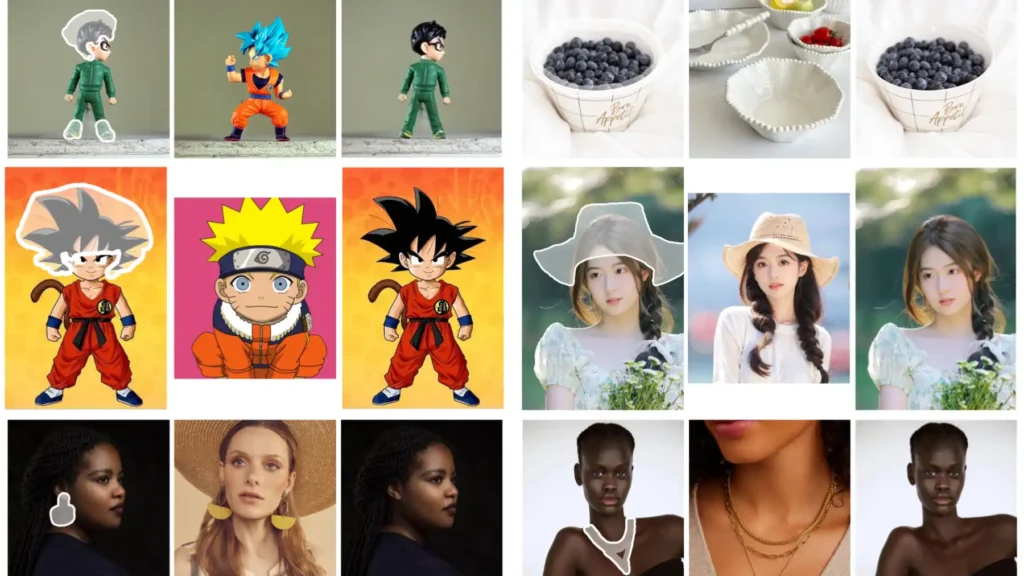
The model then copies the relevant elements from the reference straight into the masked spot on the source image.
The approach relies on a dual U-Net architecture derived from Stable Diffusion 1.5. One network handles the source image and mask, while the other processes the reference.
Cross-attention mechanisms pull matching details across the two, so the edit blends seamlessly. Training used pairs of video frames where one frame was masked and the other served as the reference.
This self-supervised method taught the model to find semantic connections between unrelated photos.
Unlike many AI editors that need lengthy text prompts or fine-tuning on specific styles, MimicBrush works zero-shot. A single reference photo is enough.
The tool supports high-resolution outputs and runs either through a free online demo or locally after downloading checkpoints. Developers from the University of Hong Kong released the code on GitHub in June 2024, and the community quickly added ComfyUI nodes and Hugging Face spaces for easier access.
The system shines when users want exact control over small regions without affecting the rest of the image. Clothing patterns, wall textures, floor designs, or object surfaces can all transfer cleanly.
Because everything stays local or runs on user-provided references, the edits remain private and fully owned by the creator.
How MimicBrush Differs from Traditional Inpainting
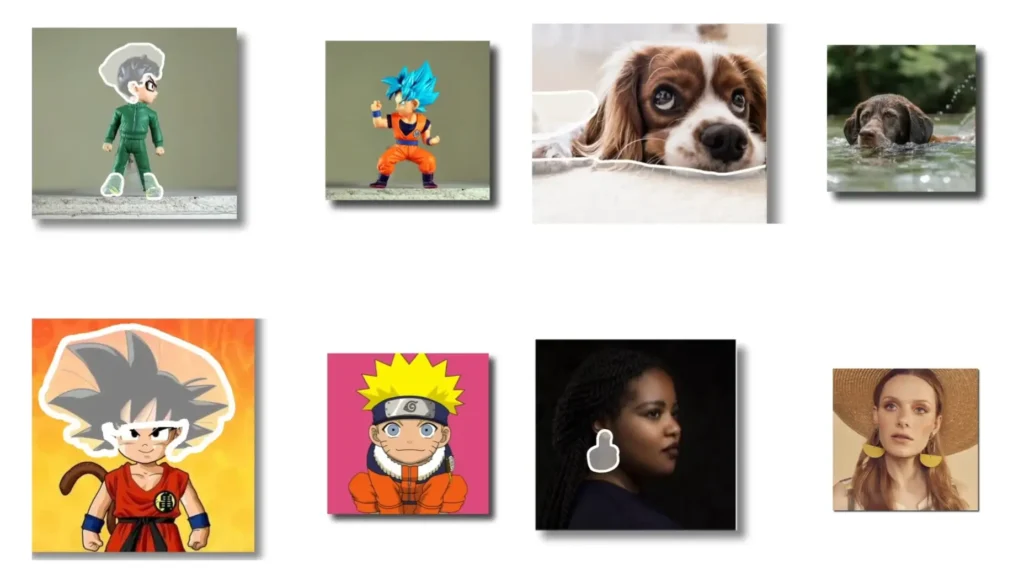
Traditional inpainting fills a masked area with new content that the AI generates on its own or pulls from the surrounding background. The output often looks plausible but generic, especially when the user wants a very specific pattern or texture. Prompts must describe the desired result in detail, and results can vary across runs.
MimicBrush takes a different route. Instead of inventing content, it directly imitates whatever appears in the reference image. The model analyzes the reference for color, pattern, lighting, and structure, then applies the matching elements to the masked region. This produces far more accurate and consistent results when the goal is to replicate a real-world example rather than create something from scratch.
Another key difference appears in shape handling. Standard inpainting can distort object outlines because it focuses on filling space. MimicBrush includes an optional depth-map control that locks the original geometry in place.
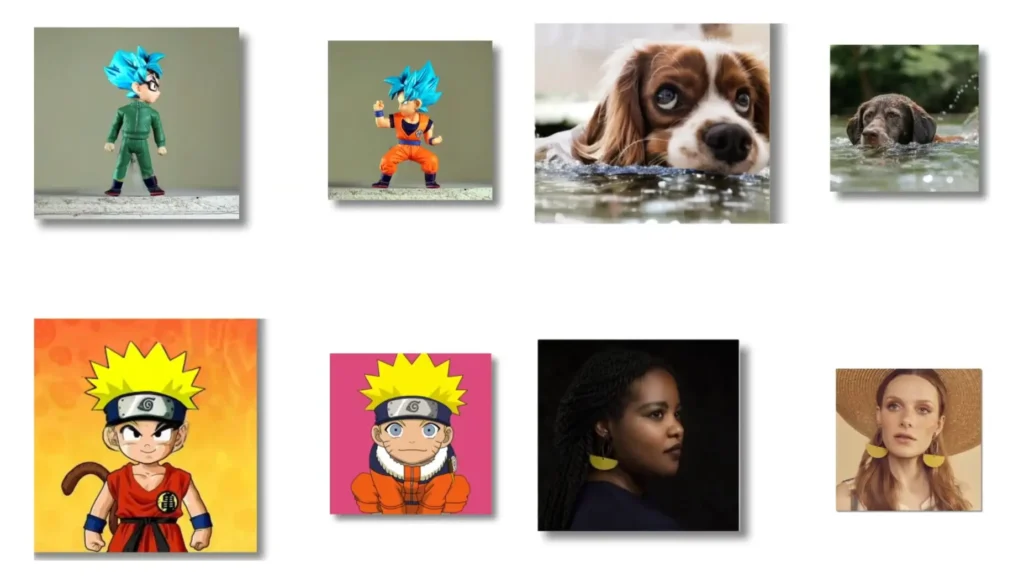
Users simply tick a checkbox labeled “keep the original shape,” and the model transfers only the surface details while respecting edges and proportions. This makes it ideal for tasks where structure matters more than complete reinvention.
In short, inpainting works best for removal or generic filling. MimicBrush excels at precise imitation, which opens up creative possibilities that feel closer to manual design work but finish in seconds.
Core Features: What Makes It Unique?
MimicBrush delivers three standout capabilities that set it apart from other editing tools.
Zero-shot Editing
No training or fine-tuning is necessary. Upload the source and reference, draw the mask, and run the process. The model already understands how to map features between images thanks to its video-frame training. This saves hours compared with tools that require dataset preparation or LoRA training for each new style.
Texture Transfer
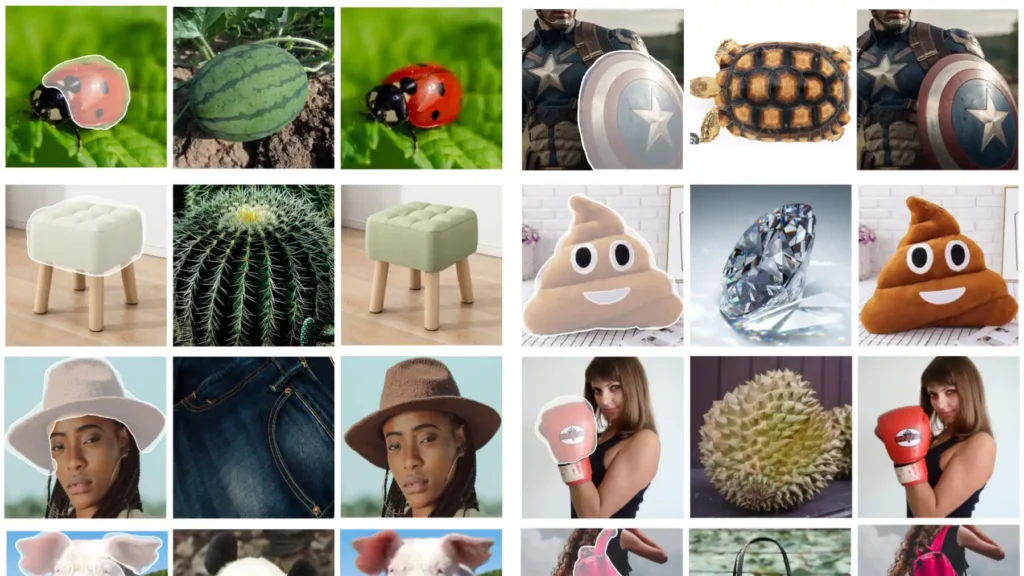
The system copies surface details such as fabric weaves, wood grain, tile patterns, or printed designs from the reference straight onto the target area. Lighting and shading adapt automatically to match the source image, so the transferred texture looks like it always belonged there. This feature proves especially useful when an old photo contains the perfect material that needs to appear on a modern product shot.
Shape Preservation
When the “keep the original shape” option is enabled, the model uses depth information to maintain exact contours and proportions. Only the visual texture changes; the underlying geometry stays locked. Users can switch this off for more creative freedom when they want the reference to influence both shape and surface. The toggle gives flexibility across different project types without needing separate tools.
Additional strengths include clean integration with existing Stable Diffusion workflows and the ability to refine outputs through post-processing steps built into the pipeline. The dual U-Net design ensures high fidelity even when the reference and source come from completely different scenes.
MimicBrush for E-commerce Creators
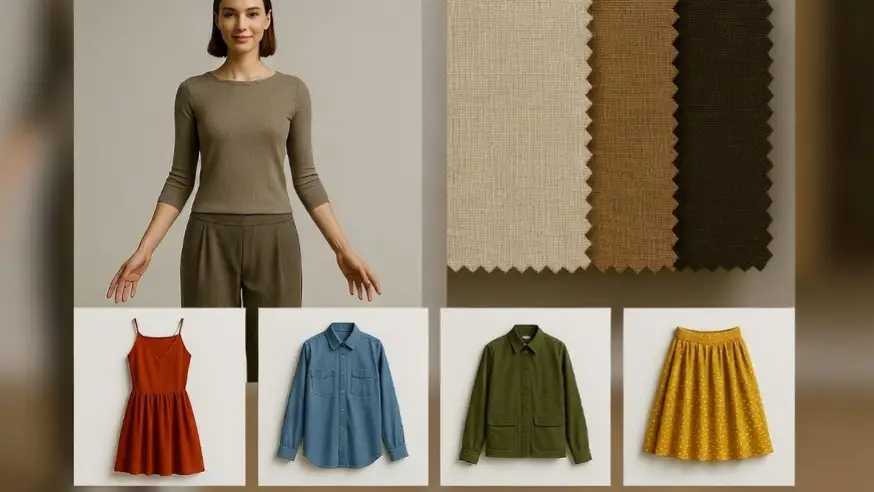
E-commerce fashion brands struggle with high costs and delays when showing products on models for every new color, print, or pattern variation. Traditional photoshoots require studios, photographers, and models often hundreds or thousands of dollars per session, leaving small sellers stuck with flat-lay images that convert poorly.
MimicBrush solves this by enabling fast, precise clothing texture swaps on existing model photos. Upload a base image of a model in a neutral or plain garment, mask the clothing area, and provide a reference photo of the desired fabric or pattern.
The AI transfers the exact weave, print, color, and subtle details while preserving the original pose, body shape, fit, lighting, and background. Shape preservation (enabled by default) keeps drapes, wrinkles, and proportions realistic, no distortion or unnatural results.
The workflow is straightforward: prepare one high-quality base shot per model/pose, mask tightly around seams and hems, upload clear references (fabric swatches or full garments), generate in 10–60 seconds, and iterate.
One base photo can yield dozens of variations in under an hour, colorways, seasonal prints, limited drops, or custom client previews without reshooting.
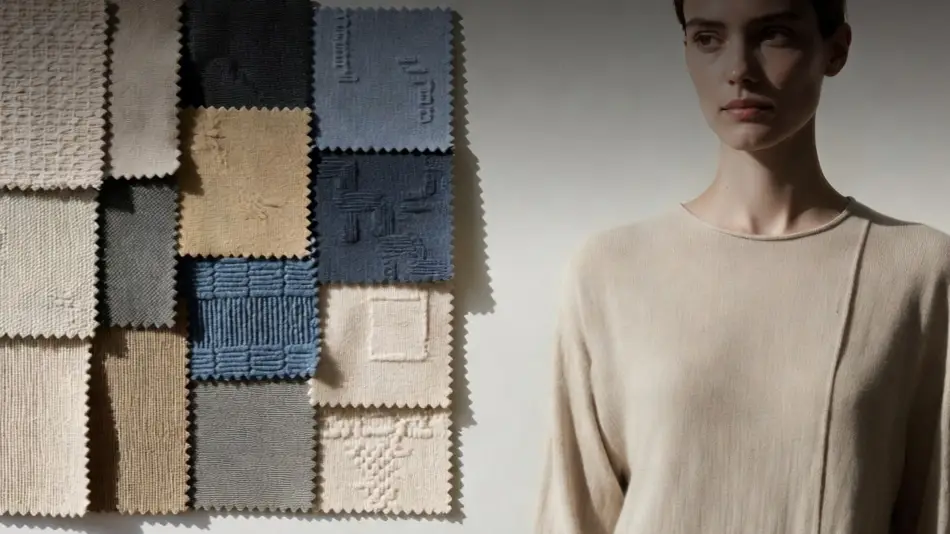
Key benefits include massive cost savings, instant response to trends or feedback, consistent catalog visuals (same lighting/face/pose across listings), and better A/B testing for ads (test patterns to see what converts). It works for product catalogs, social reels, supplier mockups, and virtual staging.
Limitations: best with good lighting and resolution; complex layered garments may show minor edge blending; local runs need decent GPU (or use free Colab); no built-in batch or Shopify integration yet.
For small-to-mid fashion sellers tired of flat-lay limits and shoot expenses, MimicBrush delivers huge value. Set up once, build a base photo library, and generate endless on-model content affordably and quickly. It levels the playing field against bigger brands with deep photography budgets.
How to Use MimicBrush (Step-by-Step)
The process stays simple whether users choose the free online version or the local installation.
Step 1: Upload Source Image
Begin with the photo that needs editing. This is the base image containing the object or area to modify. The tool accepts common formats such as JPG and PNG. Higher-resolution sources produce better results, but the system handles typical phone or camera shots well.
Step 2: Upload Target Reference Image
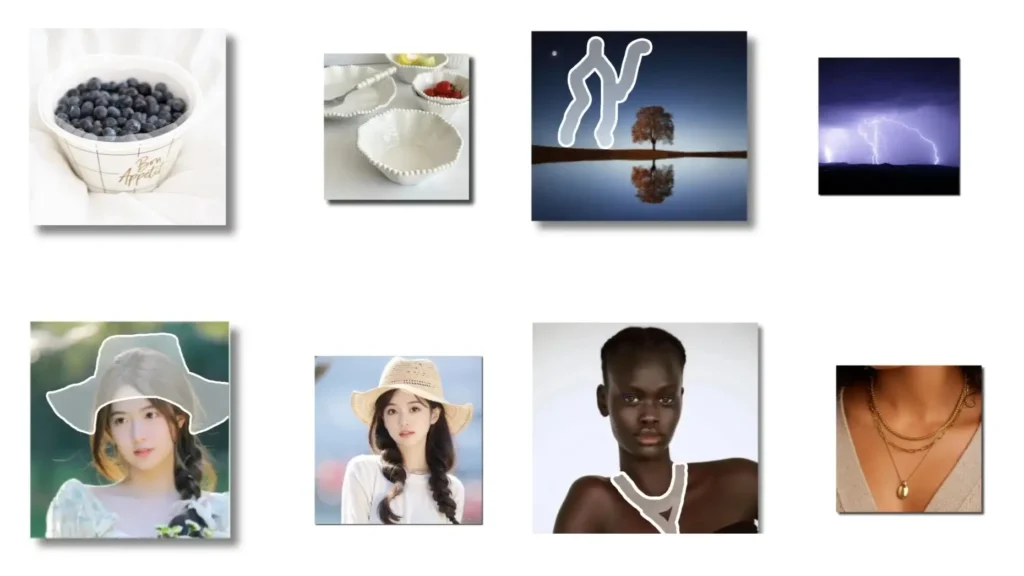
Provide the photo that contains the desired texture, pattern, or style. This reference can come from anywhere—an old family album, a product catalog, or an online inspiration board. No special alignment is required because the model figures out the correspondence automatically.
Step 3: Masking
Draw a white mask over the exact region that should change. Most interfaces offer a brush tool for this. Keep the mask tight to the area of interest to avoid unintended edits. The mask tells the model precisely where to apply the imitation. After masking, hit the generate button. Processing usually finishes in 10 to 30 seconds on standard hardware.
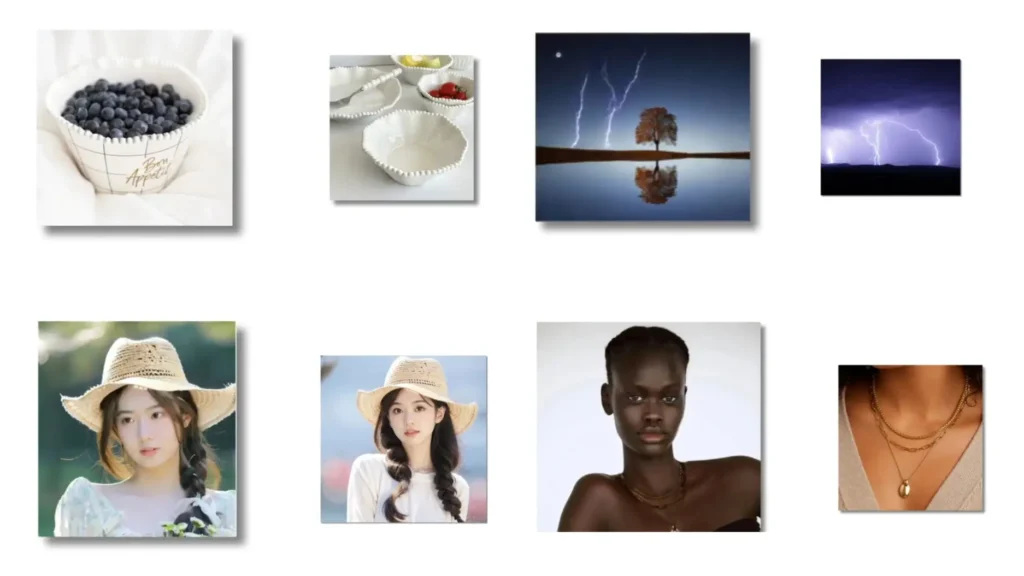
For the online demo at mimicbrush.app, users simply drag and drop files and click run. The local Gradio version adds extra sliders for strength and guidance scale, letting advanced users fine-tune how strongly the reference influences the result. After generation, download the output or iterate by adjusting the mask or swapping the reference.
Community notebooks on Google Colab simplify local testing even further. Users load the repository, install dependencies, download the cleaned Stable Diffusion checkpoints, and run the demo cell. No paid GPU subscription is required for basic experiments.
Practical Applications (The Wow Factor)
Real-world projects highlight why MimicBrush feels different from standard editors.
Fashion Design
Designers can photograph a plain dress and then apply any fabric pattern from a reference shot. One click changes a solid black garment into a floral print, leopard print, or custom logo texture while keeping the exact fit and folds of the original model photo.
E-commerce teams use this to create multiple colorway or pattern variations from a single base image, speeding up catalog production dramatically. The shape preservation option ensures sleeves and hems stay true to the original cut.
Interior Design
Homeowners and decorators upload a room photo and a separate image of desired wallpaper or flooring. The tool swaps the wall texture or floor material realistically, complete with correct perspective and lighting.
This allows quick visualization of renovation options without hiring photographers or rendering entire 3D scenes. Real estate agents create virtual staging versions that show new tile patterns or wood finishes in minutes instead of days.
Other strong use cases include product mockups (transferring logo textures onto packaging), photo restoration (replacing faded areas with clear reference material), and artistic experiments (turning ordinary objects into surreal versions by borrowing styles from paintings or nature photos). Because the edits remain localized, the surrounding environment stays untouched, which keeps the final image looking authentic.
Hardware and Setup Guide
MimicBrush runs in multiple ways depending on user needs and resources.
Running It on Google Colab (Free Method)
Several community notebooks make this straightforward. Open a Colab session, clone the GitHub repository, install the requirements, and download the Stable Diffusion 1.5 and inpainting checkpoints from Hugging Face. Run the Gradio demo cell to launch an interactive interface inside the browser.
Basic edits work on Colab’s free tier, though longer queues appear during peak hours. For faster results, users can connect a free Kaggle account or upgrade to Colab Pro for more RAM.
Local GPU Requirements (NVIDIA Focus)
The dual U-Net design demands solid hardware. A minimum of 12 GB VRAM is recommended for comfortable 512×512 edits. RTX 3060 or higher cards handle most tasks smoothly, while 24 GB cards like the RTX 4090 support higher resolutions without swapping to CPU.
Install via conda environment as described in the repository: create the environment from the YAML file, activate it, and point the config file to the downloaded checkpoints. The entire setup takes about 15 minutes once the models finish downloading. Users with AMD or Intel GPUs can experiment through ComfyUI nodes, though NVIDIA remains the most stable choice.
Pros and Cons (Honest Review)
Pros
- Completely free and open-source with full local control
- Extremely accurate texture and style matching from any reference
- Zero-shot operation means instant results without training
- Shape preservation toggle gives precise control over geometry
- Works well for both creative and professional workflows
- High privacy since images never leave the user’s machine when run locally
- Active community support through ComfyUI and Colab notebooks
Cons
- High VRAM requirements limit access on lower-end GPUs
- Local setup involves downloading large checkpoints and configuring paths
- The Gradio interface feels basic compared with polished commercial tools
- Generation speed slows on complex masks or high resolutions
- No built-in batch processing for large projects
- Occasional artifacts appear when reference and source lighting differ greatly
The advantages outweigh the drawbacks for users who value precision and ownership over convenience.
Verdict: Is It Worth the Setup?
At the end of the day, MimicBrush earns a strong recommendation for anyone who regularly needs to transfer specific textures or styles between images. The zero-shot nature combined with shape-aware editing solves a real pain point that traditional inpainting and prompt-heavy tools fail to address cleanly.
Hobbyists can jump in through the free online demo or Colab notebooks without spending money or time on complicated installations. Professionals who handle fashion, interior, or product photography will appreciate the speed and accuracy enough to invest a short setup session for the local version.
The tool may not replace full photo suites for every task, but it fills a unique niche that makes certain edits dramatically easier. For creators who want professional-looking results without learning complex masking or paying subscription fees, the effort to get MimicBrush running delivers clear returns.
Anyone serious about reference-based image work should test it today. The combination of power, freedom, and zero cost makes it a practical addition to the modern creator’s toolkit.
FAQs
How does MimicBrush handle complex patterns?
The dual U-Net and cross-attention layers capture fine details such as weave structures or printed logos accurately when the reference image is clear.
Does the tool require an internet connection?
The online demo does, but the local installation runs completely offline after downloading the checkpoints.
Can MimicBrush edit multiple areas in one image?
Users can apply separate masks and references in successive runs or use the ComfyUI workflow for more advanced multi-region projects.
Is shape preservation always necessary?
No. Turn the option off when the reference should influence both texture and outline for more creative or transformative edits.
What file formats does it support?
Standard image formats including JPG, PNG, and WEBP work for both source and reference images.
How long does a typical edit take?
Most generations finish in 10 to 40 seconds on a mid-range GPU, depending on resolution and mask complexity.
Does MimicBrush offer commercial usage rights?
Yes. The open-source license allows full commercial use of generated images.
About The Author
