
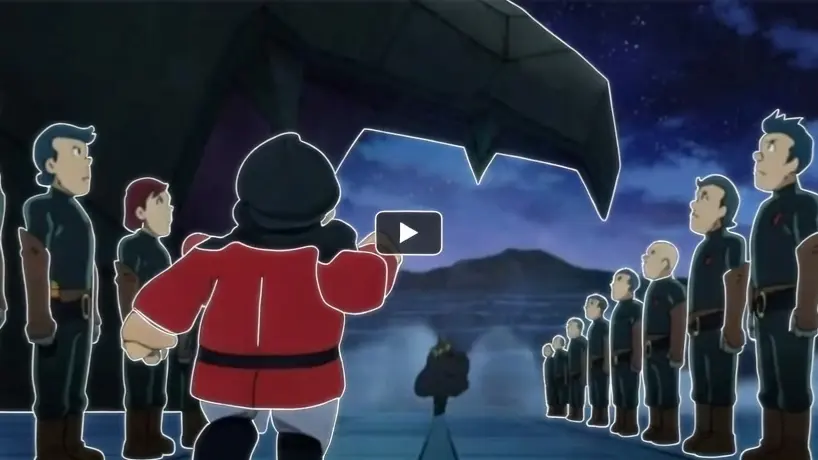
Right now, most creators are looking for practical ways to turn static sketches into fluid animations without spending weeks on manual frame-by-frame work.
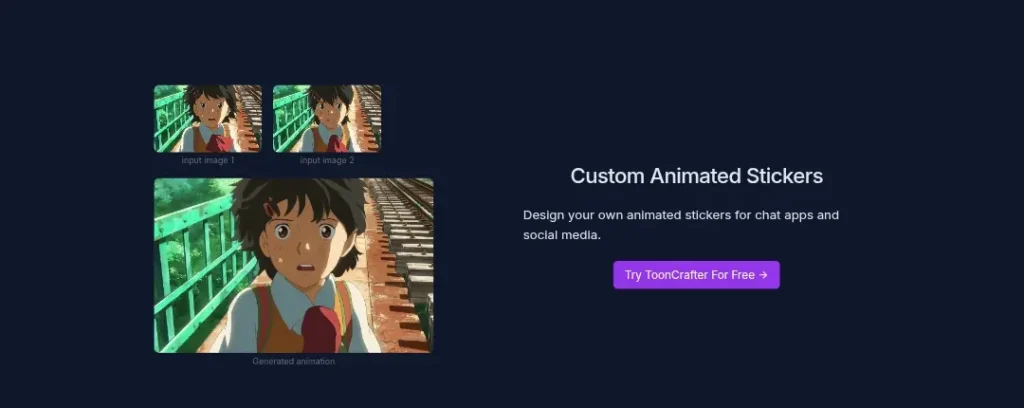
ToonCrafter AI delivers exactly that through generative cartoon interpolation. The model takes two cartoon images, one as the starting frame and one as the ending frame and fills in the missing motion between them to produce a smooth animated sequence.

This approach solves a specific problem that indie anime artists face every day. Traditional 2D animation demands hundreds of drawings for even short clips, which eats up time and limits output for solo creators or small teams.
ToonCrafter keeps the original art style intact while generating natural movement, making it possible to produce short cartoon sequences in minutes instead of days. The result feels like a professional in-between artist stepped in, but without the cost or delay.
Artists working on webtoons, short films, social media clips, or game assets now gain a reliable shortcut that respects their hand-drawn aesthetic and delivers consistent quality across frames.
Core Features: How it Works

The model centers on three main capabilities that work together to create polished cartoon animations.
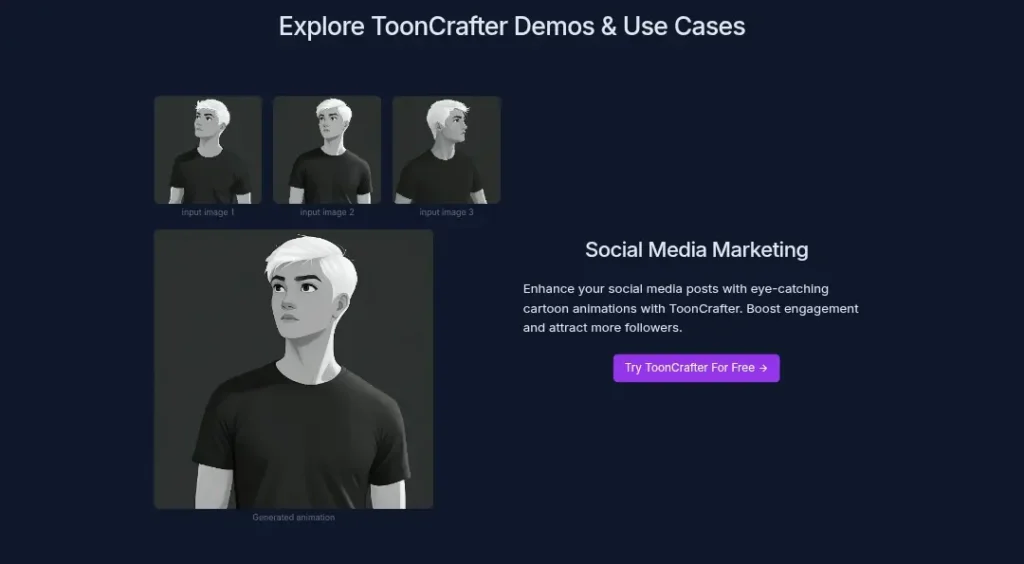
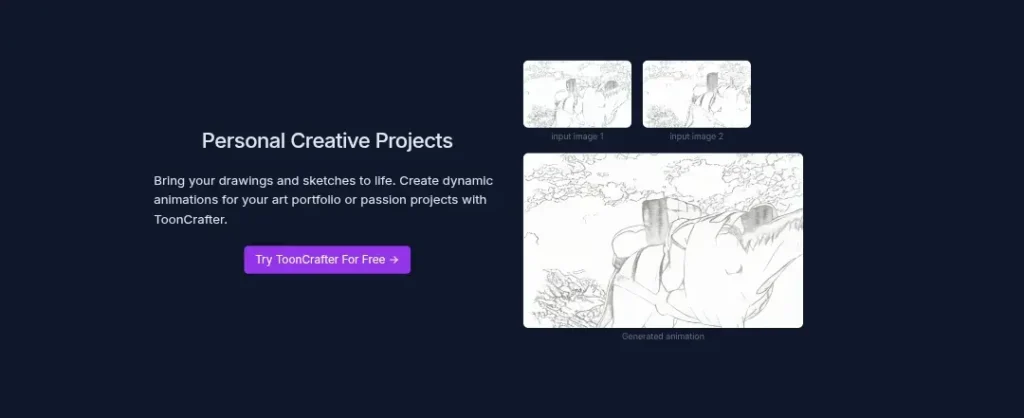
Sketch-to-Animation converts rough start and end sketches directly into a colored video clip. Users upload two images that share the same character or scene but show different poses.
The system analyzes lines, colors, and shapes, then generates the intermediate frames while preserving every detail of the original artwork. This process handles complex elements like hair flow, clothing folds, and facial expressions without breaking the style.
Keyframe Interpolation fills the gaps between the two provided images. Traditional animation requires artists to draw every single frame; here the AI handles the heavy lifting by predicting motion paths based on diffusion priors trained on cartoon data.
The output maintains timing and physics that feel right for anime-style movement, such as bouncy walks or dramatic head turns. Sparse sketch guidance adds another layer of control, users can draw simple lines on top of the keyframes to dictate specific motion directions, like an arm swing or eye blink, without needing full drawings.
Resolution and FPS settings give flexibility within the model’s limits. Standard output runs at 512×320 or 320×512 pixels, which suits social media and web formats perfectly.
Frame rates typically settle around 8 to 12 FPS for natural cartoon timing, though users can adjust generation parameters to tweak speed and smoothness.
The system supports up to 16 frames per clip, enough for short actions or loops that can be stitched together for longer sequences. These specs keep file sizes manageable while delivering crisp results that match indie production needs.
Hardware Requirements (The Real Review)
Running ToonCrafter locally demands serious GPU power because the diffusion process is compute-heavy. Standard setup needs around 24 GB VRAM, similar to an NVIDIA A100, to handle full-precision inference without crashes or slowdowns.
Consumer cards like the RTX 4090 (24 GB) can work with optimizations, but many users report swapping to lower precision modes to drop usage to 10–12 GB. This makes fp16 versions or community forks essential for anyone without enterprise hardware.
Here is a clear breakdown of hardware options:
- Local high-end GPU (24 GB+ VRAM): Full control and zero ongoing cost, but expensive upfront and power-hungry.
- Optimized community builds (10–12 GB VRAM): Works on mid-range cards with slight quality trade-offs in rare cases.
- Cloud platforms: No local GPU required; users rent instances for a few dollars per hour.
Cloud alternatives remove the barrier completely. Hugging Face Spaces offers a free public demo where anyone uploads two images and generates clips without installing anything.
For heavier use, RunPod provides dedicated pods with 48 GB GPUs starting around $0.69 per hour, enough to run multiple tests in one session before shutting down the instance.
Colab notebooks and Windows-specific forks also exist for quick tests on lower-spec machines. These options let beginners experiment immediately while professionals scale without buying new hardware.
Step-by-Step Tutorial: Creating the First Cartoon Video
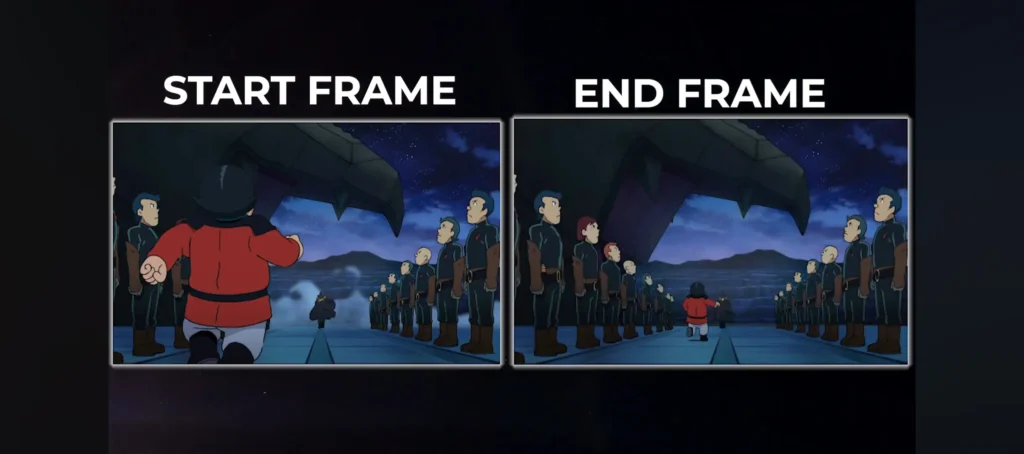
The process starts with smart image selection. Choose two keyframes that represent clear start and end poses of the same character or object. The motion difference should feel like roughly one second of real-time action, too little movement creates static results, while too much can produce unnatural jumps.
Keep resolution consistent at 512×320 or similar to avoid stretching artifacts. Clean lines and flat colors work best because the model excels with classic cartoon styling.
Next comes prompting for motion. The text field accepts short descriptions that guide the AI on how the transition should feel. Phrases like “smooth head turn with hair flowing naturally” or “character jumps forward with bouncy steps” give direction without overcomplicating.
Sparse sketch guidance takes this further, draw light lines on a third image layer to force specific paths, such as an arm arc or leg kick. Sliders for speed, style strength, and randomness allow fine-tuning: lower randomness keeps outputs closer to the original art, while higher values introduce creative variation.
The actual generation follows these steps:
- Visit the local Gradio interface or Hugging Face Space.
- Upload the start image in the first slot and the end image in the second.
- Add an optional text prompt describing the desired action.
- Adjust sliders: set motion strength to medium for balanced results, style fidelity high to lock in the art look.
- Click generate and wait 20–40 seconds depending on the platform.
- Preview the MP4 output, download it, and iterate by tweaking the prompt or sketches if motion feels off.
ToonCrafter vs. Manual Animation
This workflow turns a simple pair of drawings into a ready-to-use clip. Multiple short segments can be combined in any video editor for longer stories.
Manual 2D animation for a 10-second clip often takes a skilled artist one full week of drawing, inking, and coloring every frame. ToonCrafter condenses that timeline dramatically, most users generate the same length of footage in under 10 minutes once the keyframes are ready.
The time saving comes from eliminating repetitive in-between work while still allowing artistic control through references and prompts. Indie creators report finishing entire short scenes in one afternoon instead of spreading the task across days.
Quality checks reveal where the AI still falls short. Glitches appear most often in extreme deformations, such as rapid perspective shifts or overlapping limbs, where frames can warp or lose detail.
Complex backgrounds sometimes blur during fast motion, and very fine lines like eyelashes may flicker. These issues are easy to spot in previews and fix by adding more sketch guidance or breaking the action into smaller segments.
In most standard anime-style movements: walks, expressions, simple object interactions, the output matches or exceeds hand-drawn smoothness because the model learned from vast cartoon datasets.
The trade-off is acceptable for speed, and post-processing in tools like CapCut or After Effects handles remaining artifacts quickly.
Pros & Cons (Honest Breakdown)
The model delivers clear advantages that set it apart in the cartoon animation space.
Pros include best-in-class preservation of anime physics and art style, which keeps characters looking exactly as the artist intended across every frame. Open-source availability means zero licensing fees and full freedom to modify the code or integrate it into custom pipelines.
High customization comes from sketch guidance and prompt control, letting users steer results precisely without starting over. Generation speed stays fast even on cloud setups, and the output requires almost no cleanup for many use cases.
Cons center on practical barriers. Installation feels intimidating for beginners because it involves Git clones, dependency management, and model downloads that can take hours on slower connections. Hardware demand remains high without cloud access, locking out many casual users until they rent a pod.
Resolution caps at 512×320 limit large-screen projects, and the 16-frame maximum forces users to stitch clips manually for anything longer. Occasional artifacts in complex motions require extra iterations, adding time for perfectionists.
A quick table summarizes the balance:
- Strong art style fidelity and motion physics
- Completely free open-source core
- Precise control through sketches and prompts
- Fast generation on cloud platforms
- Steep setup for local use
- High VRAM needs without optimization
- Low resolution caps output scale
- Frame limit requires manual extension
Verdict: Is it better than Runway Gen-3?
The comparison comes down to two specific areas: art style consistency and overall smoothness.
On art style, ToonCrafter holds a clear edge for cartoon and anime work. It trains exclusively on illustrated datasets and locks in line weights, color palettes, and shading exactly as provided in the keyframes.
Runway Gen-3 handles general video but often introduces realistic textures or slight style drift when fed cartoon inputs, making it harder to maintain a pure 2D look.
Creators who need their hand-drawn aesthetic preserved throughout the clip consistently prefer ToonCrafter because the output feels like an extension of their own artwork rather than a generic video generation.
Smoothness tells a similar story in cartoon contexts. ToonCrafter’s interpolation focuses on natural in-between motion tailored to animated physics: subtle bounces, fluid hair, and expressive timing all emerge cleanly.
Runway Gen-3 produces longer and higher-resolution clips with strong general motion, yet it can feel overly cinematic or introduce minor jitter in stylized characters.
For short, style-focused sequences that indie artists produce daily, ToonCrafter delivers noticeably cleaner transitions without the extra polish steps that Runway sometimes requires.
Runway Gen-3 wins when projects need higher resolution, longer duration, or live-action mixed with animation. For pure 2D cartoon interpolation where art style and fluid movement matter most, ToonCrafter proves more effective and accessible for the target audience.
The open-source nature and specialized training make it the stronger choice for indie anime creators who want professional results without compromising their unique visual identity.